> For the complete documentation index, see [llms.txt](https://docs.enapi.com/llms.txt). Markdown versions of documentation pages are available by appending `.md` to page URLs; this page is available as [Markdown](https://docs.enapi.com/roaming/how-to-accept-a-roaming-offer.md).
# How to Accept a Roaming Offer
### Receiving an offer
When a partner sends you an offer, you'll receive an email. From the email select **View Offer** to open the ENAPI Portal, or navigate directly to **Offers → Received**.
A notification badge on **Offers** in the sidebar indicates pending offers.
### Review the offer
Navigate to **Roaming → Partners**. Partners with an open offer show the status *Offer available*. Click the partner's name to see the details, or go straight to **Roaming → Offers** to see all incoming offers.
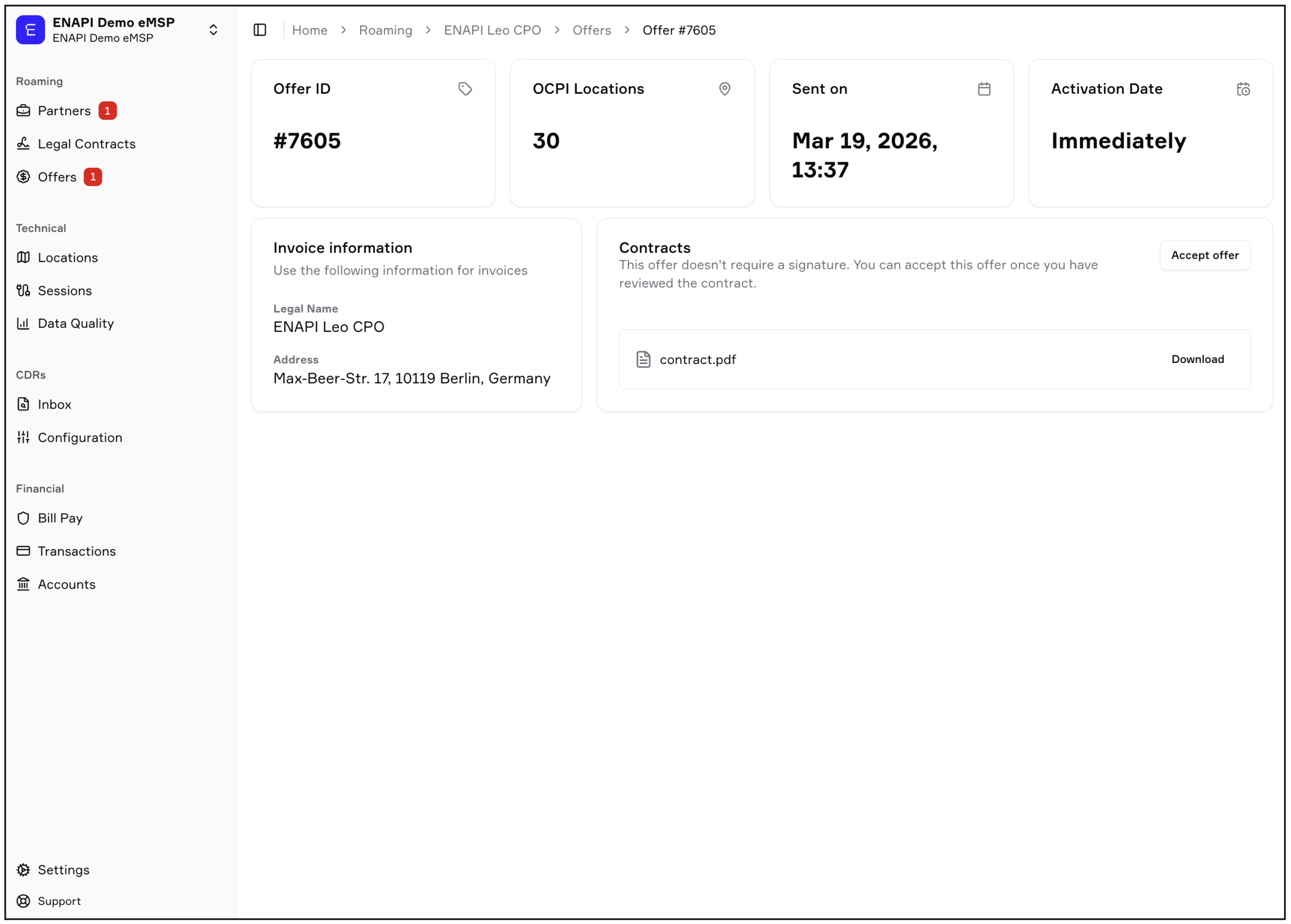
Review the contract terms attached to the offer.
The offer details include:
* **Offer ID.** Unique identifier for this offer
* **Locations.** Number of locations with charge points included
* **Sent date.** When the sender (CPO or eMSP) created the offer
* **Activation date.** When roaming becomes active after acceptance
* **Contract.** Download to review the roaming agreement
 ### Sign the agreement
ENAPI handles the signing workflow end-to-end. When you open the offer, you have two options:
* **Sign it yourself.** Complete the signature directly in the Portal.
* **Assign it to a colleague.** Route the signing task to the right person at your organization — typically a legal or commercial signatory. They'll receive an email with a signing link.
Both parties need to sign before the agreement activates. If the sender pre-signed their side, your signature is the last one needed: the agreement completes and the connection activates as soon as you submit it, or on the sender's chosen activation date if one is set.
The sender may have signed their side in advance. If so, their signature isn't shown on the offer while you review it. It appears on the contract once the agreement is complete.
Once all signatures are in, ENAPI:
* Marks the partnership as *Roaming* on the Partners page.
* Adds the signed contract to **Roaming → Contracts → Active**.
### What happens next
Activation enables the partnership commercially, but data doesn't start flowing automatically. New and updated data will sync going forward, but to get the full current state from your partner — their complete locations, tokens, or tariffs — an initial pull or push needs to run.
See [How ENAPI Syncs OCPI Data](/technical-documentation/how-enapi-syncs-ocpi-data.md) in the Technical Documentation.
---
# Agent Instructions
This documentation is published with GitBook. GitBook is the documentation platform designed so that both humans and AI agents can read, navigate, and reason over technical content effectively. Learn more at gitbook.com.
## Querying This Documentation
If you need additional information that is not directly available in this page, you can query the documentation dynamically by asking a question.
Perform an HTTP GET request on the current page URL with the `ask` query parameter, and the optional `goal` query parameter:
```
GET https://docs.enapi.com/roaming/how-to-accept-a-roaming-offer.md?ask=&goal=
```
`ask` is the immediate question: it should be specific, self-contained, and written in natural language.
`goal` is optional and describes the broader end goal you are ultimately trying to accomplish on behalf of the user. GitBook uses it to tailor the answer towards what is most useful for that goal.
The response will contain a direct answer to the question and relevant excerpts and sources from the documentation.
Use this mechanism when the answer is not explicitly present in the current page, you need clarification or additional context, or you want to retrieve related documentation sections.
### Sign the agreement
ENAPI handles the signing workflow end-to-end. When you open the offer, you have two options:
* **Sign it yourself.** Complete the signature directly in the Portal.
* **Assign it to a colleague.** Route the signing task to the right person at your organization — typically a legal or commercial signatory. They'll receive an email with a signing link.
Both parties need to sign before the agreement activates. If the sender pre-signed their side, your signature is the last one needed: the agreement completes and the connection activates as soon as you submit it, or on the sender's chosen activation date if one is set.
The sender may have signed their side in advance. If so, their signature isn't shown on the offer while you review it. It appears on the contract once the agreement is complete.
Once all signatures are in, ENAPI:
* Marks the partnership as *Roaming* on the Partners page.
* Adds the signed contract to **Roaming → Contracts → Active**.
### What happens next
Activation enables the partnership commercially, but data doesn't start flowing automatically. New and updated data will sync going forward, but to get the full current state from your partner — their complete locations, tokens, or tariffs — an initial pull or push needs to run.
See [How ENAPI Syncs OCPI Data](/technical-documentation/how-enapi-syncs-ocpi-data.md) in the Technical Documentation.
---
# Agent Instructions
This documentation is published with GitBook. GitBook is the documentation platform designed so that both humans and AI agents can read, navigate, and reason over technical content effectively. Learn more at gitbook.com.
## Querying This Documentation
If you need additional information that is not directly available in this page, you can query the documentation dynamically by asking a question.
Perform an HTTP GET request on the current page URL with the `ask` query parameter, and the optional `goal` query parameter:
```
GET https://docs.enapi.com/roaming/how-to-accept-a-roaming-offer.md?ask=&goal=
```
`ask` is the immediate question: it should be specific, self-contained, and written in natural language.
`goal` is optional and describes the broader end goal you are ultimately trying to accomplish on behalf of the user. GitBook uses it to tailor the answer towards what is most useful for that goal.
The response will contain a direct answer to the question and relevant excerpts and sources from the documentation.
Use this mechanism when the answer is not explicitly present in the current page, you need clarification or additional context, or you want to retrieve related documentation sections.